Technology can help assisted living residents stay connected, manage daily routines, and feel more confident handling common tasks. The most useful devices are not always the newest ones. A phone, tablet, television, or voice assistant can be valuable when it is set up around a person’s vision, hearing, mobility, memory, and comfort level.
Which devices are most useful for assisted living residents?
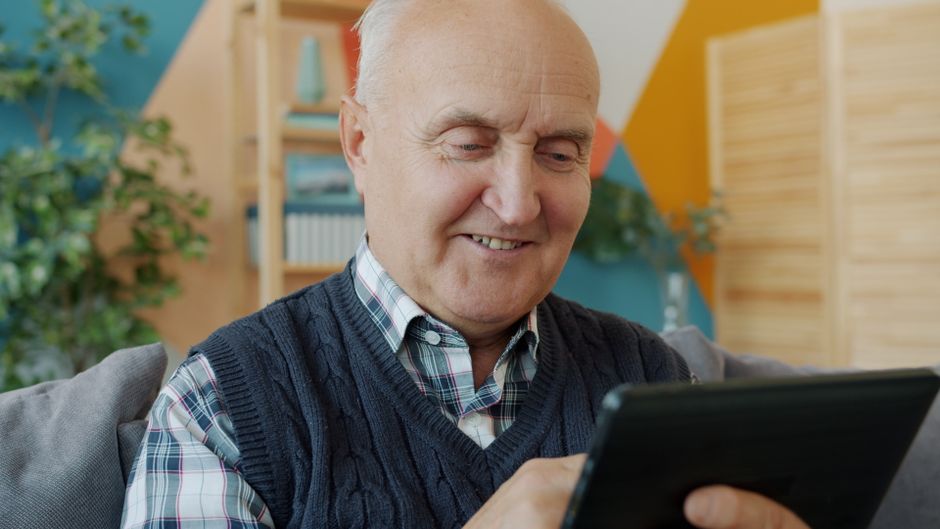
A simple smartphone or tablet is often enough for calls, video conversations, photographs, medication reminders, weather updates, and entertainment. Larger screens may be easier to see, while a phone may be more convenient for emergencies or movement around the residence.
Useful features include:
- Large text and high-contrast display settings
- Clear volume controls and hearing-aid compatibility
- Video calling for family conversations
- Calendar and reminder alerts
- A camera for sharing photos or reading labels
- Emergency contacts placed at the top of the contact list
- A charging stand that keeps the device in a consistent location
A basic television can also support comfort and independence. Closed captions, an easy-to-read remote, and a written list of favorite channels may reduce frustration. Residents who have difficulty using small buttons may benefit from a simplified remote with fewer controls.
How should a device be set up for easier use?
The best setup removes unnecessary steps. A home screen crowded with applications, alerts, and unfamiliar icons can make a device harder to operate.
Start by placing only the most-used functions on the first screen:
- Phone
- Messages
- Video calls
- Camera
- Weather
- Calendar
- Emergency contacts
Increase the font size and display contrast. Turn off notifications that are not useful. If typing is difficult, enable voice-to-text or use the microphone button on the keyboard. Residents with limited hand strength may find a sturdy stand easier than holding a tablet for long periods.
A written instruction card can be placed near the device. It should use short steps such as:
1. Tap the green phone symbol.
2. Select a name.
3. Press the speaker button if needed.
4. Tap the red button to end the call.
Instructions should be printed in large, dark lettering. Pictures or simple symbols can help residents who have difficulty reading small text or remembering sequences.
What technology can help with memory and daily routines?
Technology can support memory, but it should not replace human assistance for important health or safety decisions. Calendar alerts, medication reminders, digital clocks, and recorded messages can help organize the day.
A tablet or phone may be programmed to remind someone about:
- Meals or scheduled activities
- Hydration
- Medication times, when approved as part of the person’s care plan
- Family calls
- Transportation arrangements
- Charging hearing aids or other personal devices
Voice assistants may be useful for setting timers, checking the day and date, or playing music. However, they can misunderstand speech, respond to background noise, or activate unexpectedly. Residents should know how to cancel a request and should avoid relying on voice technology for emergency help unless the system has been specifically tested.
For residents with memory loss, familiar photos and labeled contacts may be more useful than a complicated calendar. A consistent routine is generally easier to follow than frequent changes to device settings.
How can residents stay safe from scams and unwanted messages?
Older adults are often targeted by fraudulent calls, texts, emails, and pop-up messages. A message may claim that an account is locked, a payment is overdue, a package cannot be delivered, or a prize has been won. Urgency and secrecy are common warning signs.
Residents should pause before responding to any unexpected request for money, passwords, gift cards, account numbers, or personal identification information. It is safer to discuss the message with a trusted family member or designated staff member before clicking a link or calling a number included in the message.
Helpful safety habits include:
- Do not share passwords or one-time security codes.
- Do not allow an unknown caller remote access to a device.
- Avoid clicking links in unexpected messages.
- Use a screen lock with a number that is not easy to guess.
- Keep financial information off shared or public devices.
- Delete suspicious messages rather than replying.
- Report repeated unwanted calls or messages through the device’s blocking tools.
A legitimate organization will generally not demand immediate payment through unusual methods or pressure someone to keep a request secret.
How can technology support hearing, vision, and mobility needs?
Accessibility settings can make ordinary devices much easier to use. Larger text, screen magnification, voice descriptions, vibration alerts, and flashing notifications may help residents with changing eyesight or hearing.
For hearing support, residents can try:
- Closed captions on television and video calls
- Headphones or a personal amplifier approved for their needs
- Stronger ringtone volume
- Vibration alerts
- Positioning the device where the microphone is not blocked
For vision support, useful changes may include:
- Enlarged text and icons
- Higher contrast
- A brighter screen without excessive glare
- Voice reading features
- Fewer items on the home screen
A device should be placed where it can be reached without leaning across furniture or walking around cords. Charging cables should be secured along a wall or table edge rather than left across a walking path. This is especially relevant during winter weather in Hollidaysburg, PA, when residents may already be dealing with heavier clothing, wet footwear, or reduced outdoor mobility.
What should residents know about privacy in assisted living?
Privacy settings deserve attention whenever a device is used around other residents, visitors, or shared living spaces. Video calls should be taken in a private area when possible. A resident should decide who may view photographs, location information, health details, or personal messages.
Before lending a device to someone else, close private applications and avoid saving passwords in easily accessible places. Residents should also ask before photographing or recording another person. Respecting privacy protects friendships and reduces misunderstandings within the community.
Devices containing health information should be secured with a passcode. If a phone or tablet is lost, a trusted person should know how to lock it remotely or change important account passwords.
What happens if the internet or power goes out?
Internet-based services may not work during an outage, and wireless devices can lose power. Keeping a charged phone available is useful, but it should not be treated as the only emergency plan.
Residents may want to keep:
- A charged backup battery
- A written list of important phone numbers
- A small flashlight
- Paper instructions for essential routines
- Hearing-aid batteries or charging equipment, as appropriate
- A way to receive residence announcements if internet service is unavailable
During severe weather, residents should follow the building’s emergency procedures. Technology can provide alerts and updates, but instructions from assisted living staff remain the primary source for evacuation, sheltering, or other immediate safety decisions.
How can family members make technology less frustrating?
Family members can help most by simplifying rather than taking over. A short, repeated practice session is often more effective than changing several settings at once. The resident should be allowed to choose which functions matter most.
Helpful support includes labeling buttons, writing down passwords in a secure manner, testing video calls, and practicing what to do after an accidental tap. If a device stops working, calmly checking power, volume, Wi-Fi connection, and the correct application may solve the problem.
Technology should fit the resident’s daily life. The goal is not to master every feature, but to make communication, reminders, entertainment, and safety easier to manage.